

Description
Download Cisco VPN Client – Secure, Fast, and Easy Remote Access
Overview
Cisco has been a benchmark for enterprise‑grade networking for decades, and its VPN solutions are no exception. The Cisco VPN Client is a lightweight, robust application that lets individuals and businesses create a secure tunnel to their corporate network from anywhere in the world. Whether you are a remote employee needing to access internal file shares, a consultant connecting to a client’s admin console, or an IT professional managing multiple sites, this client provides a straightforward, reliable bridge to the resources you need.
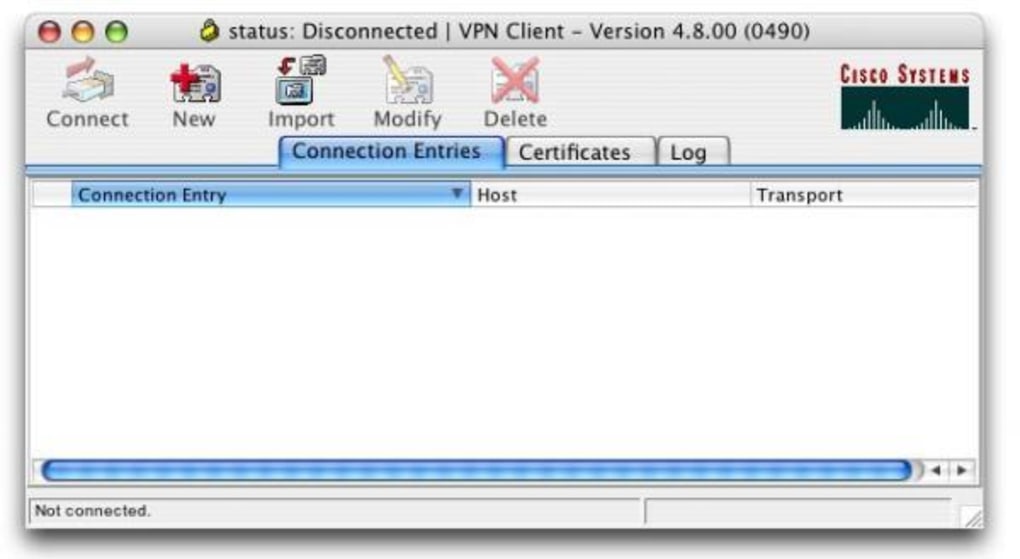
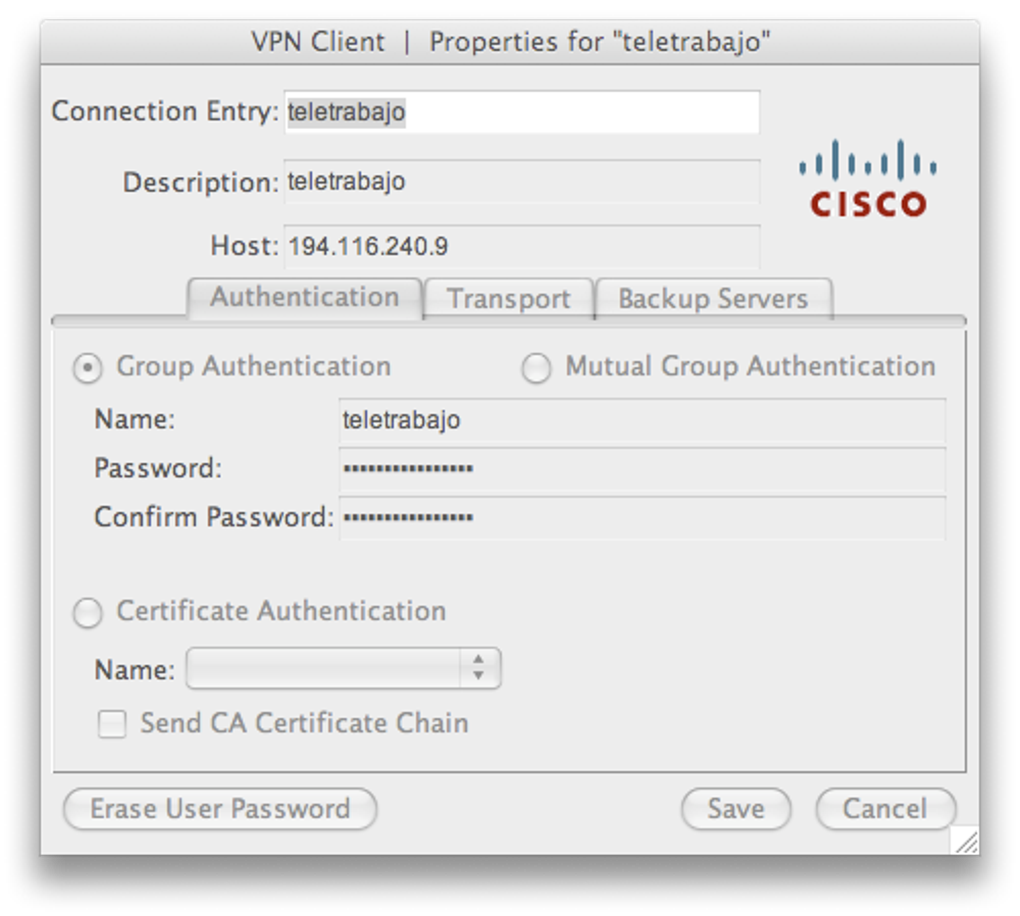
The latest release focuses on stability and speed. After a quick installation, you import a VPN profile supplied by your network administrator, enter your credentials, and the client establishes a connection in seconds. The interface is intentionally minimal: the top bar houses Import, Modify, New, and Disconnect buttons, letting you manage profiles without navigating through layers of menus. While the connection is lightning‑fast, some users have noted that the disconnection process can linger, especially on macOS, but this minor inconvenience is outweighed by the overall performance and security.
Built on Cisco’s proven encryption standards, the client supports AES‑256, 3DES, and other strong ciphers, ensuring that data in transit remains confidential. It also integrates seamlessly with existing Cisco ASA firewalls and AnyConnect gateways, making it an ideal choice for organizations already invested in Cisco infrastructure. In short, if you need a simple, solid, and secure VPN solution, the Cisco VPN Client is a top contender that lives up to the Cisco reputation.
Key Features & Benefits
- Rapid Connection Times – The client establishes a tunnel within seconds, minimizing downtime for remote workers.
- Strong Encryption – Supports industry‑standard ciphers such as AES‑256, 3DES, and SHA‑2 for data integrity.
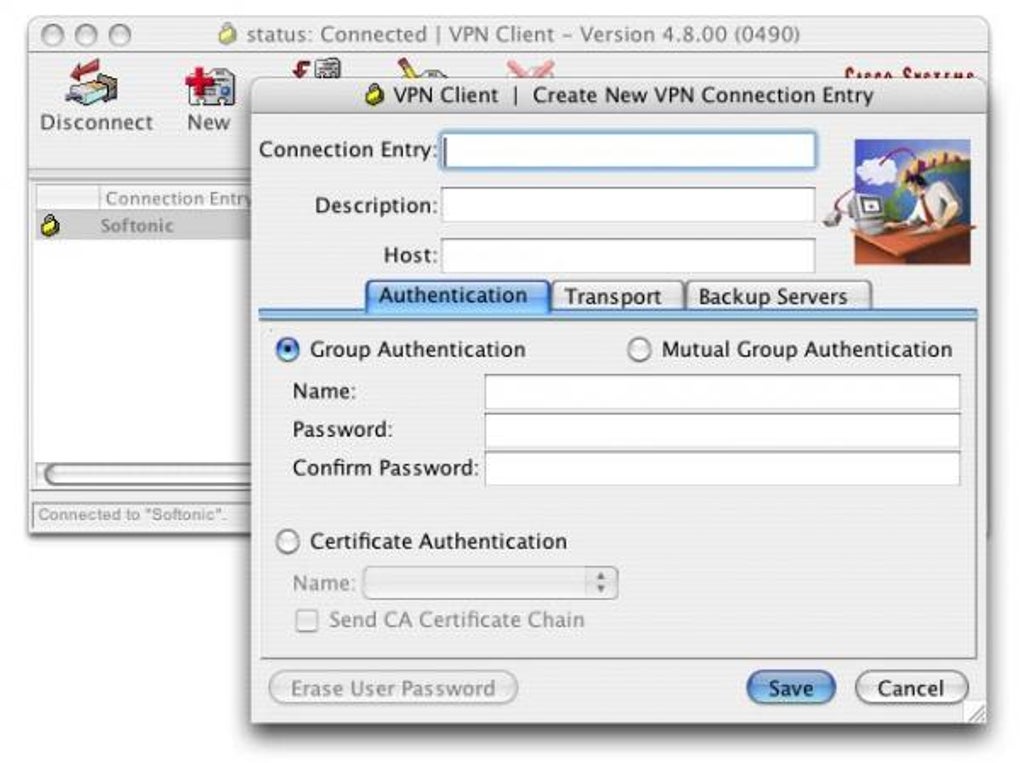
- Profile Management – Import, create, or modify VPN profiles directly from the main interface without complex configuration files.
- Cross‑Platform Compatibility – Native clients for Windows and macOS, with community‑supported versions for Linux.
- Seamless Integration – Works hand‑in‑hand with Cisco ASA firewalls, AnyConnect gateways, and other Cisco security appliances.
- Low Resource Footprint – Consumes minimal CPU and RAM, allowing it to run quietly in the background on older hardware.
- Automatic Re‑connect – If the network drops, the client can be configured to attempt reconnection without user intervention.
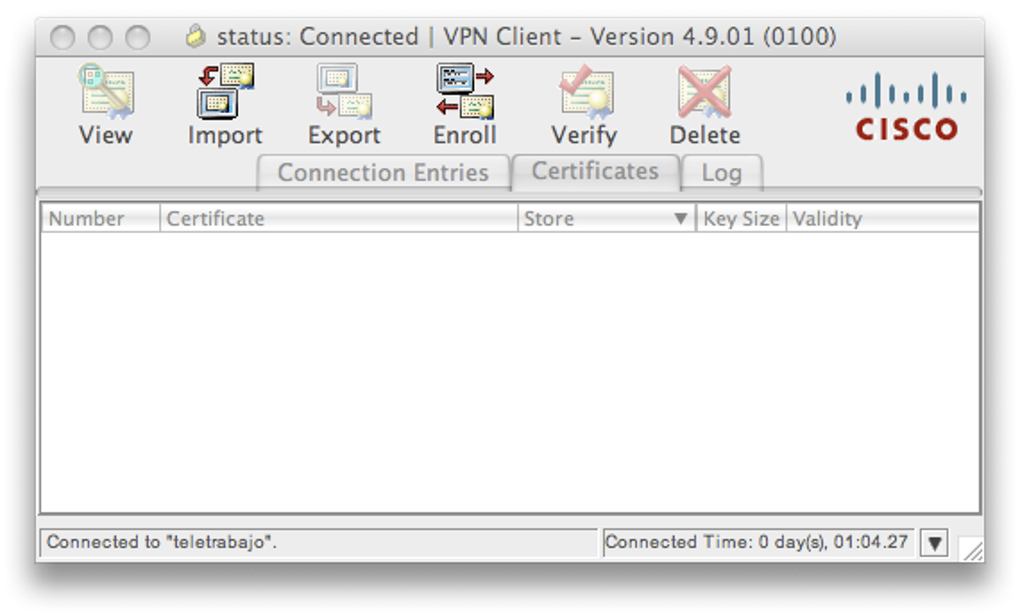
- Comprehensive Logging – Detailed connection logs help administrators troubleshoot issues quickly.
- Secure Credential Storage – Credentials are encrypted locally, reducing the risk of credential theft.
- Free for Personal Use – No licensing fees for individual users; enterprises can purchase volume licenses for added support.
These features combine to create a VPN experience that is both user‑friendly and enterprise‑ready. The simplicity of the UI means that even non‑technical staff can connect with confidence, while IT teams appreciate the granular controls and robust logging that aid in compliance and monitoring. Moreover, because the client adheres to Cisco’s security standards, organizations can rest assured that their data remains protected against eavesdropping and man‑in‑the‑middle attacks.
Installation, Usage & Compatibility
Step‑by‑Step Installation
Installing the Cisco VPN Client is a straightforward process that can be completed in under five minutes. Follow these steps for a smooth setup:
- Download the Installer – Visit the official Cisco download portal or your organization’s software repository and download the appropriate installer for your operating system.
- Run the Installer – Double‑click the .exe (Windows) or .dmg (macOS) file and follow the on‑screen prompts. The installer will request administrative privileges to configure network adapters.
- Reboot (if required) – Some systems may need a quick restart to load the virtual network adapter correctly.
- Import a VPN Profile – Launch the client, click the Import button, and select the .pcf or .xml profile provided by your network admin.
- Enter Credentials – Input your username and password. If two‑factor authentication is enabled, you’ll be prompted for the second factor.
- Connect – Click the Connect button. The status indicator will turn green once the tunnel is active.
Usage Tips for Optimal Performance
After the initial connection, you can fine‑tune the client using the Modify option. Adjust DNS settings, enable split‑tunneling, or change the authentication method if your organization permits it. For frequent travelers, it’s advisable to save multiple profiles (e.g., office, data‑center, remote office) and switch between them without re‑importing files. When you’re finished, click Disconnect. Although the disconnection may take a few extra seconds on macOS, the client ensures all encrypted packets are flushed before the tunnel closes, preserving data integrity.
Supported Operating Systems
The Cisco VPN Client is officially supported on the following platforms:
- Windows 10, Windows 11, Windows Server 2016‑2022 (32‑bit and 64‑bit)
- macOS 10.13 (High Sierra) and later, including macOS Ventura
- Linux distributions (Ubuntu, CentOS, Red Hat) via community‑maintained packages
While mobile devices typically use Cisco AnyConnect, the desktop client remains the go‑to solution for full‑featured VPN access on laptops and workstations. Compatibility with legacy systems is also maintained through older client versions, though Cisco recommends using the latest release for security patches and performance improvements.
Pros and Cons
Pros
- Fast connection establishment—ideal for time‑sensitive tasks.
- Robust encryption ensures data confidentiality.
- Intuitive UI reduces the learning curve for end users.
- Low system resource usage keeps laptops responsive.
- Seamless integration with Cisco networking hardware.
- Free for personal use and flexible licensing for enterprises.
Cons
- Disconnection can be slower on macOS, occasionally causing shutdown delays.
- Limited mobile support; iOS/Android users must use Cisco AnyConnect.
- Advanced features (e.g., custom split‑tunneling) may require admin privileges.
- Older Windows versions (pre‑Windows 7) are not officially supported.
Frequently Asked Questions
Is the Cisco VPN Client free for personal use?
Yes, Cisco offers the VPN Client at no cost for individual users. Enterprises can purchase volume licenses for additional support and management features.
Can I use the client on a Linux machine?
While Cisco does not provide an official Linux installer, community‑maintained packages are available for major distributions such as Ubuntu and CentOS. These versions retain core functionality like profile import and AES encryption.
What authentication methods are supported?
The client supports username/password, RSA SecurID tokens, and, when configured on the server side, two‑factor authentication via Duo or similar services.
How secure is the encryption used by Cisco VPN Client?
Cisco VPN Client utilizes industry‑standard encryption protocols, including AES‑256 and 3DES, along with SHA‑2 for integrity checking, meeting the security requirements of most regulated industries.
Why does the disconnect process sometimes take longer?
During disconnection, the client must ensure that all encrypted packets are properly terminated and that the virtual adapter is safely released. On macOS, this clean‑up sequence can be a few seconds longer than the connection phase, which is why you may notice a brief delay.
Conclusion – Secure Your Remote Work with Cisco VPN Client
In a world where remote work has become the norm, a reliable VPN solution is no longer optional—it’s essential. The Cisco VPN Client delivers on the promises of speed, security, and simplicity that modern professionals demand. Its seamless integration with Cisco’s broader security ecosystem, combined with a lightweight design, makes it a strong candidate for both individual freelancers and large enterprises.
While the occasional lag during disconnection may be a minor irritation, the overall performance, encryption strength, and ease of use outweigh this drawback. If you are looking for a proven, enterprise‑grade VPN that you can download and start using today, the Cisco VPN Client is a solid choice. Download now, import your profile, and experience secure connectivity in seconds.
Guides & Tutorials for Cisco VPN Client
How to install Cisco VPN Client
- Click the Preview / Download button above.
- Once redirected, accept the terms and click Install.
- Wait for the Cisco VPN Client download to finish on your device.
How to use Cisco VPN Client
This software is primarily used for its core features described above. Open the app after installation to explore its capabilities.
User Reviews for Cisco VPN Client 0
No reviews found





.webp)